What this software actually is
Uzovia is a program that lives on your computer. You use it to connect a prop firm account — starting with Topstep — set a daily loss limit, and run a trading session from one place.
It is not a broker. It does not hold your money. It is not a signal service that texts you “buy now.” It will not pass a Combine for you. Think of it as a cockpit: instruments, a seatbelt, and a red handle. You still fly the plane.
Your Topstep username and API key stay on the machine in front of you. We do not keep a copy in the cloud. If you sell the laptop, wipe the desk first.

Your first morning, in order
Do not skip ahead to the green button. The first morning is plumbing. If the plumbing is wrong, nothing else matters.
- Install the Uzovia build you were sent and open it. Sign in with the same email that holds your license — password or Google, either is fine. If a browser window opens, finish there and come back. The desk is waiting for the license to check out, not for you to type faster.
- If you see “no active license,” that is an account problem, not a Topstep problem. Email [email protected]. Do not start pasting API keys yet.
- Connect Topstep (the chapter below). Test the connection until you can see your Combine or funded account by name.
- Turn that account on. Then set a daily loss limit you can live with if the day goes badly.
- If you were sent a starting-memory file (a small
.jsonseed), import it under Strats before you start. Without it the strategy wakes up cold. The chapter on starting memory walks through that. - Only then sit on Live and press Start. If you are unsure, leave it paused and read the tape first.
Finding your way around
There is no row of tabs across the top. Everything important is a short list on the left. Click an item and the big middle of the window changes. Settings and your account sit at the bottom of that same list — not as a tiny face in the corner.
- LiveThe board you leave open while you trade. Orders and the three big buttons live here.
- DeltaA weather report for the tape. Who is pushing, and is price listening?
- StratsThe playbook for today. Pick the strategy, and load its starting memory if you were given a seed file.
- AcctsWhich of your Topstep accounts are allowed to trade.
- RailsYour daily safety limits. Set these before you start.
- WireWhere you plug in Topstep. Do this once.
- ReportsWhat actually happened after you flatten.
- LogsA diary of desk events if something looks stuck.
Closed beta is prop-firm futures only. You will not find a stock scanner or a crypto desk in here. That is not a missing feature. It is the product.
If you want to click around without a live account, the desk demo is a sample picture. It is not your money and it will not place a real order.
Connecting a Topstep account
Topstep does not let every app talk to your Combine by default. You buy a small add-on from them, they give you a username and a secret key, and Uzovia uses that key the way a house key opens one door — not every door in the neighborhood.
Here is the whole path, slowly.
1. Buy the API add-on at Topstep
Log into TopstepX (their website / app). Open Settings, then API. Buy the ProjectX API add-on. As of writing they charge about $29 a month for this. That money goes to them, not to us. Without it, Uzovia has nothing to talk to.
2. Attach each account you care about
In the ProjectX dashboard, link the Combine you are working and any funded account you already have. If you skip this step, the test in Uzovia will come back empty and it will feel like the desk is broken. It is not. The firm simply has not introduced those books to the API yet.
3. Paste the key into Uzovia
In Uzovia, open Wire. That word just means “the cable to the firm.” Paste the ProjectX username and the API key. Save. The key is stored on this computer. Later, if you save again, you can leave the key field blank to keep the one you already have.
4. Test, then pick the account
Click Test connection. You should see the accounts you linked, with names and balances. Then set the broker to ProjectX. Pick the account you want as the leader — or leave it on Auto, which uses the first one that is allowed to trade.
Go back to Live before you start. Wire is setup. Live is the session.
Daily limits — the part that keeps you in the game
Prop firms do not fail people for missing a perfect entry. They fail people for a day that gets away from them. Rails are the daily limits you set so that cannot happen on autopilot.

First, open Accts (Accounts) and turn on the Combine or funded account you intend to use. Each one keeps its own day. A fill on the Combine should never look like a fill on the funded account.
Then open Rails and set three ideas, in plain language:
- Daily halt. “If I am down this much today, stop trading and flatten.” This is the number you pick when you are calm, not the number you invent after two losers.
- Stop limit. “No single trade may risk more than this.” A ticket that is too big for that cap does not go out.
- Entry check. “If the next trade cannot fit under what I have left today, do not take it.” This is how you avoid the last revenge trade that blows the Combine.
There are starting presets (STEADY is the one we talk about most). They are a beginning for an ES-sized book, not a promise you will pass. After a halt, the book stays flat. Near the cash close, the desk flattens on purpose so you do not carry junk into the overnight.
Starting memory — the seed file
The strategy does not only look at the last few bars. It keeps a running sense of “what this market has been like” — the same way you remember that ES in the first hour feels different from ES at lunch. That memory lives on your machine. It grows as the desk runs.
A seed is a starting notebook. It is a small .json file from a study or a tester run we (or you) already did. You import it so day one is not a blank page. You will see the box labeled HMM memory on the strategy settings. That is this. HMM is just the name of the memory. You do not need the math.

How to load one
- Open Strats and select the strategy you will run (the flagship slot for ES).
- Open its settings. Find the HMM memory block.
- Click Import seed and choose the
.jsonfile you were given. The desk reads it on this computer. It does not upload it to us. - You should see the market name (for example ES) and how many bars of memory came with the file. On the next bar, the engine rebuilds from that base.
What “merge” means
If that market already has memory, a new import is folded in — it is not a wipe. More study, more notes, same book. An ES file only feeds ES. An NQ file only feeds NQ. A file with no market tag is the exception; treat that as a last-resort reset, not the normal path.
After you start, live memory keeps appending on top of the seed. That is the point. Re-import when you have a fresher study file. You are adding pages, not throwing the notebook away.
Start, pause, and the red button
Live is the screen you leave up once the plumbing is done. Orders and positions update here. You only need to understand three controls.
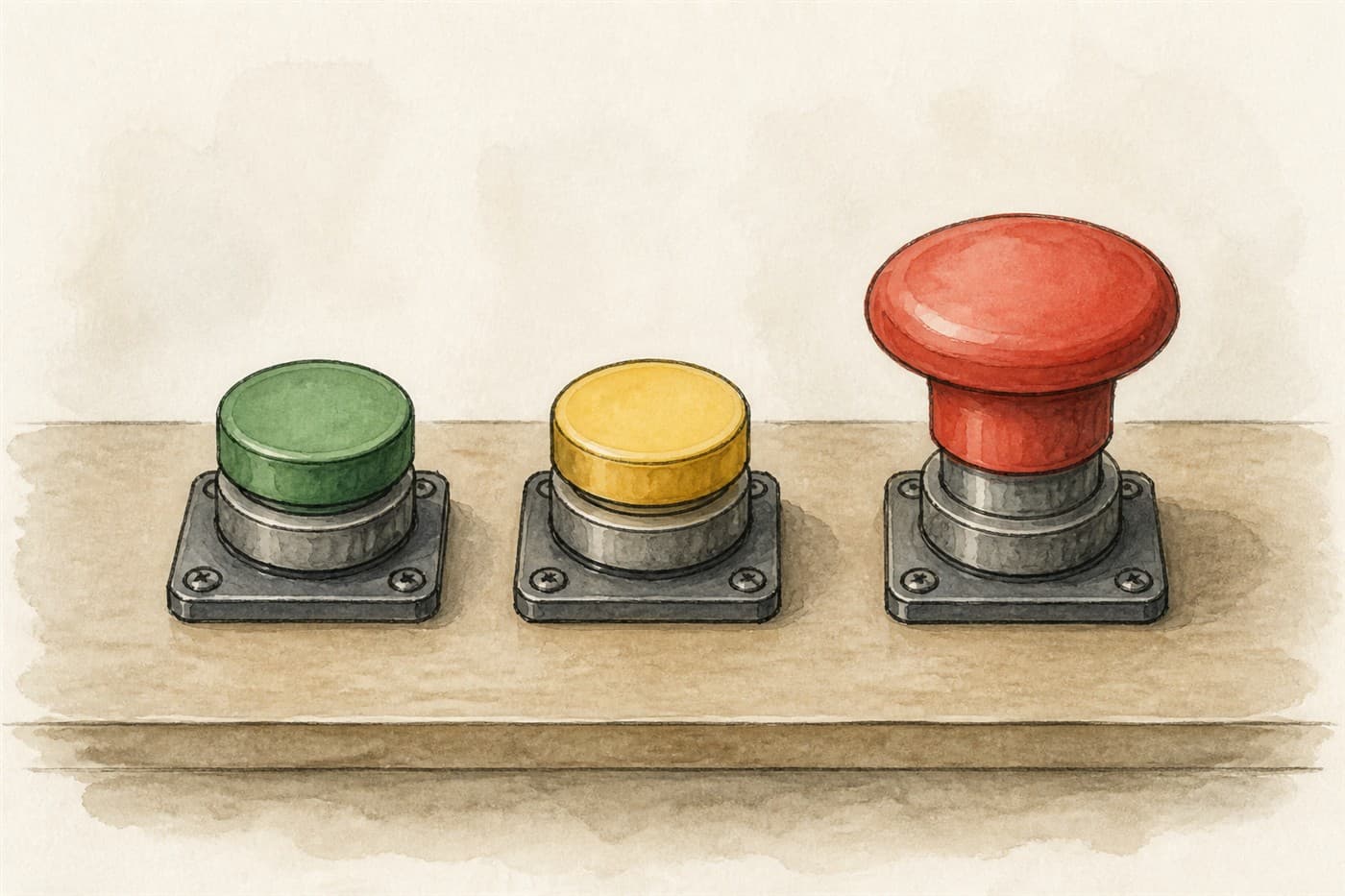
ARM means start. The session loop is allowed to work. The badge on the board will say you are armed. This is not “I agree the next trade is a winner.” It is “the desk may place orders under the limits I already set.”
DISARM means pause. Nothing new starts. What you already have stays as it is. Use it for a number, lunch, a bad feeling, or a stretch of tape you do not understand. Pausing is a skill. It is not quitting.
KILL means emergency stop. The desk asks “are you sure?”, then it stops the session and flattens at Topstep. Use it when you want out of everything, now. After a kill you reset back to paused — you do not sneak back into armed by accident.
Before you press start, glance at four things: Wire says connected, the right account is selected, rails are on, and the strategy has its starting memory if you were given a seed. If any of those is missing, you are not ready.
Reading the tape (the Delta page)
Delta is a weather report, not a fortune cookie. It tries to answer a simple pair of questions: who is pushing the market right now, and is the price actually moving because of that push?
You need Wire connected first. The bars on this page come from the same Topstep history the rest of the desk already uses. If the page is empty, the cable is unplugged — go back to Wire, test, then refresh.

The two charts
You will see two charts stacked or side by side.
The HA chart is the softer window. It smooths the noise so you can see who has been in charge — buyers or sellers — without every wiggle yelling at you. Use it for “what kind of day is this?”
The Real chart is the clear window. It is the actual prices. This is the one that matches the world you would trade in. Use it for “where would I actually be standing?”
When both windows tell the same story, that is useful. When they disagree, wait. Disagreement is not a secret third signal. It is fog.
The words on the strip
The labels are short on purpose. Here is what they mean in a kitchen-table sentence.
- BUYERS — people lifting the offer are in charge. The tape is being bought.
- SELLERS — people hitting the bid are in charge. The tape is being sold.
- ABSORBED — someone is pushing hard and price is not paying them. A wall is taking the other side. This is often where “obvious” trades die.
- HIDDEN — price is moving without a loud crowd. Quiet is not the same as empty.
- DEAD — nobody is home. Sitting is the trade.
- TRANSITION — control is changing hands. Let it finish before you invent a story.
Under those words you will see a few numbers. You do not need to worship them. You need to know which question each one answers.
- Delta (Δ) — after you subtract selling from buying on this bar, who won the tug of war?
- Pressure — how hard is the crowd pushing? Effort.
- Transfer — did that push show up in the price? Result.
- Efficiency — of the effort that showed up, how much actually converted?
- Absorption — low, medium, or high. High means a lot of effort is dying against a wall.
- Confidence — how settled is the current read? A low number means the desk itself is not sure. Believe it.
Marks on the chart
There is a free view and a fuller view. The free view is the weather report. The fuller view can draw marks for a first stretch of control — long, short, and sometimes an exit when that control is fading — plus supply and demand lines.
Those marks are a highlighter, not a command. They try to catch the beginning of control, not the middle of a move you already missed. If you find yourself chasing a mark that is already old, you are using the page backwards.
Toggles you will actually use: turn marks on or off, hide the exits if you only want entries, show or hide the supply and demand lines, and sync the two charts so they pan together. Settings let you stay in regular hours or ask the marks to respect VWAP. Leave the deeper engine group alone unless you have a reason. The defaults are the ones we ship on purpose.
Scroll the wheel to zoom. Drag to pan. Double-click to fit. Times are Eastern.
How the strategy thinks — without the secret recipe
The main strategy is a daytime scalper on ES (the S&P futures contract most prop desks live on). It is built for the regular cash session, not for heroics at 2 a.m.
The product is not “a signal.” The product is a desk that will not let a signal outrun the day’s risk. If you only remember one sentence from this handbook, remember that one.
Here is the idea, in the order the desk actually cares about it:
- Survive the day. Halt, stop size, and flatten-before-the-close wrap every order. If the next trade cannot fit, it does not go. This is not optional flavor. It is the job.
- Trade with the session, not against a cold open. The slot is looking for the day’s direction to resume after a pause — a continuation — not for a dramatic reversal you invented because you were bored.
- Need participation. A pretty candle with nobody behind it is decoration. Delta is how you see that without staring at every print. Effort with no result is a warning, not an invitation.
- Get in early or stand aside. Entries belong at the start of control. The middle of a run is where Combines go to die. Exits are staged and they stay inside the rails you already set.
- Leave in one click. Pause when the tape is unclear. Hit the red button when you want flat. Do not negotiate with a session that has already told you to stop.
We will not publish the exact lookbacks, the named filters, or the numbers that arm a ticket. That is the desk. If someone sells you an “Uzovia settings pack,” it is not from us.
Numbers you see on the public site are study figures with stated assumptions — homework, not a live track record, and not a promise you will pass. Markets change. You can lose money.
After the session
When you are flat, open Reports. That is the honest page: what each account did, versus what you thought you were doing. Read it after the close, not while you still have a position and want the story to come out a certain way.
Settings is furniture. Keep the chrome quiet. Green, red, and amber on the board mean something — leave those colors alone.
Account (the one at the bottom of the left list, and this page on the website) is your license and email. Sign out from there when you are done.
If something is stuck
Open Logs. That is a diary of what the desk tried to do. If Wire will not connect, if a flatten hangs, or if the worker looks asleep, copy the relevant stretch and send it to [email protected]. Do not paste your API key into that email.
A short checklist before you write us:
- Are you signed into the same email that holds the license?
- Is the ProjectX add-on still paid at Topstep?
- Is the Combine linked in their dashboard, not only in your head?
- Did Test connection return the account by name?
- Are rails on, and is the right account enabled?
- If you were given a seed file, does Strats → HMM memory show that market and a bar count — not “no base seed”?
If you want a click-through of the empty desk, use the demo. It will not place a live order.